Connect your repositories
Sync one project, all repositories for a GitHub account or organization, or a GitLab group and its subgroups. Read-only credentials stay in your iPhone’s Keychain.
 SignalPatch for iPhone
When a package advisory lands, see which of your projects reference an affected version. Connect GitHub or GitLab on your iPhone and choose the software you want to hear about.
iOS 17 or later Monthly subscription
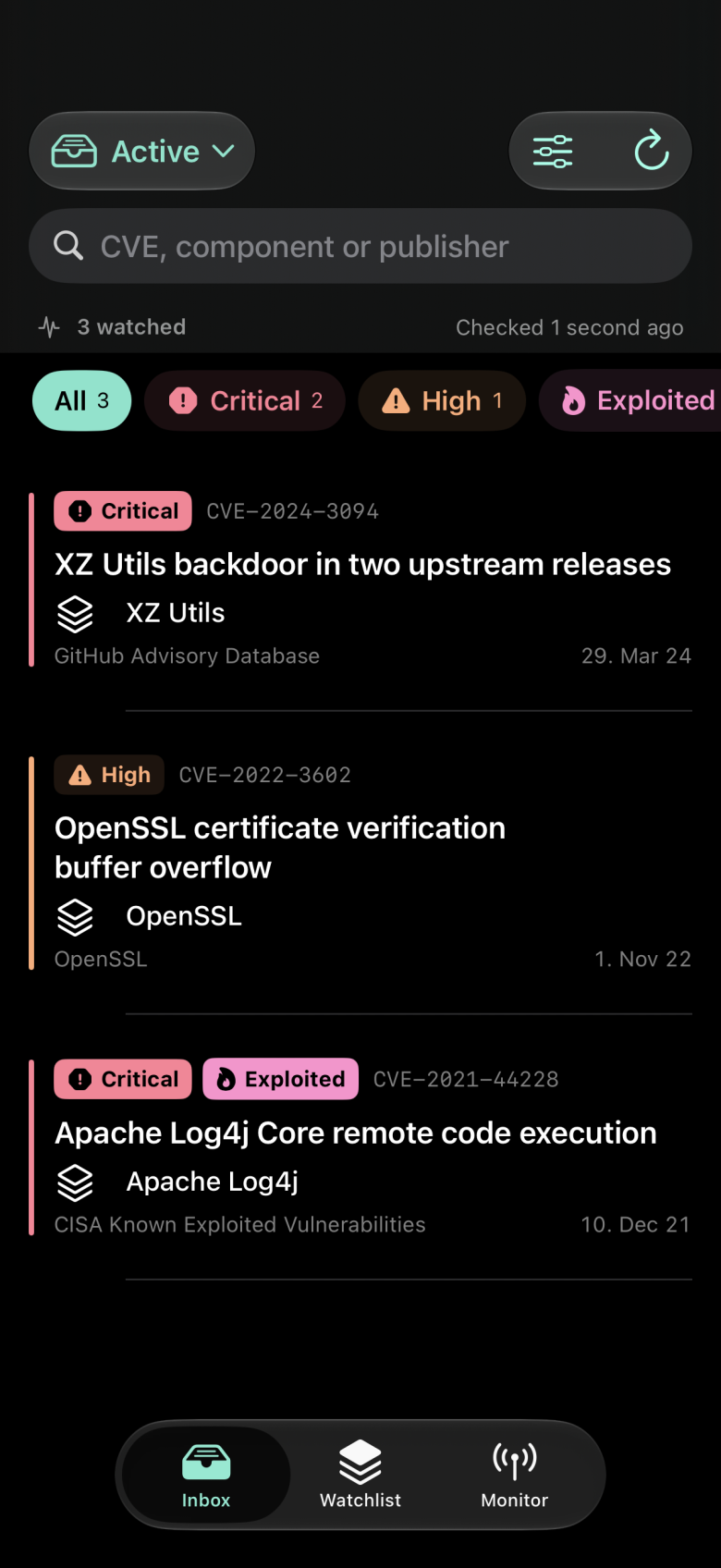
Sync one project, all repositories for a GitHub account or organization, or a GitLab group and its subgroups. Read-only credentials stay in your iPhone’s Keychain.
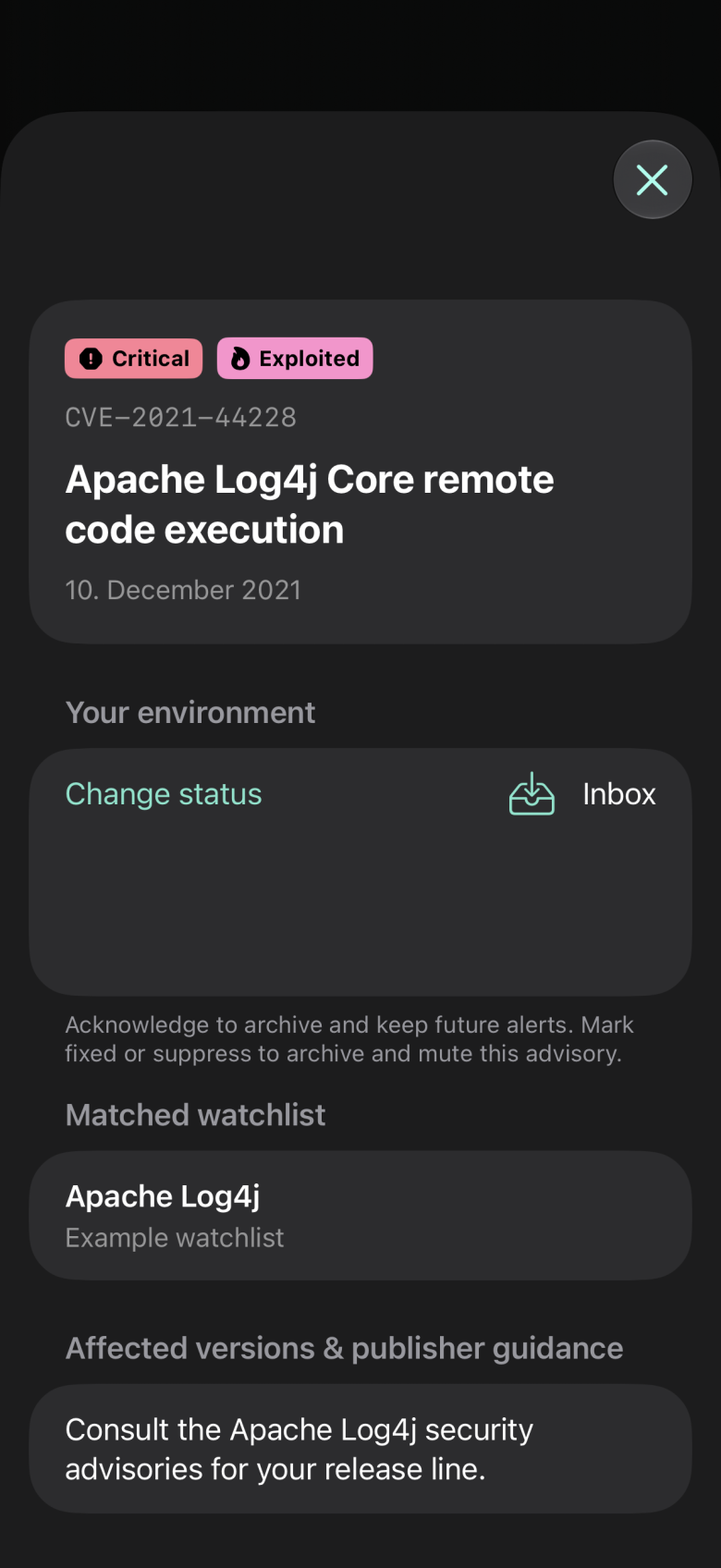
Open a package advisory to see the project, dependency file and version referenced on its default branch. Compare that version with the affected range and follow the publisher’s guidance to check your deployment.
Start with the Website or IoT platform watchlist and adjust the software and alert threshold. The monitor checks publishers while the app is closed. Your iPhone keeps the inbox available offline.
SignalPatch runs on iPhones with iOS 17 or later and connects to the monitor automatically. The app shows the local monthly price before you subscribe.
Open Watchlist → GitHub & GitLab projects → Connect repositories.
GitHub. Choose All repositories. Leave the owner blank for your personal account, or enter an organization name. Tap Create read-only token on GitHub. On GitHub, select All repositories, generate the token, then paste it in SignalPatch and tap Sync all repositories. Connect each organization separately.
GitLab. Choose Whole group and enter the group URL, including for a self-hosted instance. Connect with read-only access to include projects in its subgroups. Open SignalPatch again to resume a sync or discover newly added repositories.
Your iPhone compares supported npm, Composer, Go and pinned Python dependencies with package advisories. Project names, dependency files and individual matches stay on the phone. To receive background alerts for a particular package, add it to your saved watchlist.
Open Monitor → Push notifications and tap Enable alerts on this iPhone. Allow notifications when iOS asks. When you see Registered on this iPhone and the Apple push provider shows Configured, tap Send a test alert. Look in Notification Center for “Your iPhone is ready for advisory alerts.” Seeing that notification confirms delivery.
If the provider shows Setup required, Raunoa needs to configure the server’s Apple push key. Your iPhone registers automatically when you allow alerts. After the first feed check, new advisories that match your saved watchlist and alert settings can trigger a notification.
The monitor keeps checking publishers. You can read saved advisories and change their status on your phone. Those decisions sync the next time the app can reach your monitor.
Questions about the app? Email SignalPatch support.